The short answer. Touch and hold the app icon, tap Require Face ID, then Hide and Require Face ID. The app disappears from your Home Screen and from Search, and lands in a Hidden folder at the very bottom of the App Library that only opens with your face. This needs iOS 18 or later. Everything else on this page is either an older method or the part about what it does not cover.
This search has two very different people on it. Google's own related questions include both "how do I put an app in hidden" and "how can you tell if someone has hidden apps". Both sections are below, because the same facts answer both and pretending otherwise would just make this page less useful.
Method 1 — Hide and lock behind Face ID (iOS 18 and later)
- Touch and hold the app icon on the Home Screen.
- Tap Require Face ID.
- Choose Hide and Require Face ID, then confirm.
What this does, in order of how much it matters:
- The icon leaves the Home Screen.
- The app stops appearing in Spotlight search and in Siri suggestions.
- Its notifications stop showing content, and in most cases stop appearing at all.
- It moves into a Hidden folder below every App Library category, behind Face ID.
To undo:
- Open the App Library and scroll to the very bottom.
- Tap Hidden and pass Face ID.
- Touch and hold the app, then tap Don't Require Face ID.
Some apps cannot be hidden this way — Apple blocks it for a handful of system apps, and an app already in a folder needs dragging out first.
Method 2 — Remove from the Home Screen only
- Touch and hold the app icon.
- Tap Remove App.
- Tap Remove from Home Screen.
The icon goes; the app stays installed in the App Library, still searchable, still notifying.
This is the right tool for decluttering and the wrong tool for privacy. Anyone who swipes to the App Library or types the app's name into Search finds it immediately.
Method 3 — Take it out of Search as well
- Open Settings → Apps and pick the app.
- Tap Siri & Search.
- Turn off Show App in Search and Show Content in Search.
Worth doing even after Method 1, and essential after Method 2. Spotlight is how most people accidentally reveal an app they removed from the Home Screen months ago.
Method 4 — Hide an entire Home Screen page
Touch and hold an empty area of the Home Screen, tap the row of dots above the dock, and untick any page. The page and everything on it disappears until you tick it again.
Useful when you have several apps to deal with at once. The page can be brought back by anyone who knows the same gesture, so treat it as organisation rather than protection.
Method 5 — Hide it from your purchase history
- Open the App Store and tap your photo, top right.
- Tap Purchased.
- Swipe left on the app, then tap Hide.
This matters more than it sounds if you use Family Sharing, because otherwise everything you download appears in a list other family members can browse. It does nothing to the app on your device.
Method 6 — Screen Time, for a phone somebody else uses
Everything above hides an app from a glance. Screen Time does something different: it stops the app opening at all, and puts a passcode on the setting so it cannot be reversed by whoever is holding the phone.
- Open Settings → Screen Time → Content & Privacy Restrictions and turn it on.
- Tap Allowed Apps to switch off built-in apps,
- or App Store, Media, Web & Games → Apps to restrict by age rating.
Set a Screen Time passcode that is different from the device passcode, or the whole thing is decorative.
This is the right tool for a phone handed to a child or kept for shared use. It is the wrong tool for your own phone, because an app blocked this way disappears from the Home Screen in a way that is obvious the moment anyone looks for it.
Method 7 — Focus modes, for hiding a page at certain times
A Focus can swap which Home Screen pages are visible. Settings → Focus → [a focus] → Screen → Customize Screens, pick which pages that Focus shows.
The practical use is a Work focus that shows only work pages, and a personal page that is absent during working hours. It changes automatically by schedule or location, which nothing else on this list does. It is also the least secure of the seven — switching Focus takes one swipe from Control Centre.
What to do when an app will not hide
Three reasons the option is missing or greyed out, in the order you should check them:
- You are on iOS 17 or earlier. Require Face ID and the Hidden folder arrived in iOS 18. Settings → General → About → iOS Version. On iOS 17, Method 2 and Method 3 are the whole toolkit.
- The app is in a folder. Drag it out onto the Home Screen first, then touch and hold it there.
- It is one of the apps Apple blocks. A handful of system apps cannot be hidden or locked. Phone is the clearest example; Apple will not let you lock yourself out of making a call.
If Require Face ID appears but does nothing, check that Face ID is set up for other apps at all: Settings → Face ID & Passcode → Other Apps.
What the person holding your phone actually sees
It is worth walking through this from the other side, because it is the only test that matters.
| What they do | What they find |
|---|---|
| Swipe through your Home Screen pages | Nothing. This is what hiding solves. |
| Swipe left to the App Library | A folder called Hidden at the very bottom, locked. They learn something is hidden, not what. |
| Pull down and search the app's name | Nothing, if you also did Method 3. |
| Open Settings and scroll to Apps | Everything, by its real name. |
| Open Settings → General → iPhone Storage | Everything, with sizes and last-used dates. |
| Open Screen Time | Which apps you used this week and for how long. |
The bottom three rows are why "hide the icon" is a weaker idea than it sounds. Someone who is idly curious stops at row one. Someone who is actually looking goes to Settings, and there is no iOS setting that stops them.
The four places a hidden app still appears
This is the part the other results on this search skip, and it is the reason two of Google's top ten are Reddit threads asking whether there is a way to hide apps properly.
| Where | Shows a hidden app? | Why |
|---|---|---|
| Settings → General → iPhone Storage | Yes | Lists every installed app by size. Hiding is a Home Screen setting, not an uninstall. |
| Settings → Apps | Yes | A complete alphabetical list of everything installed. |
| Screen Time → App & Website Activity | Yes | Reports time spent per app, hidden or not. |
| App Store → Purchased | Yes, unless hidden there too | Separate list, separate setting. |
| Home Screen | No | — |
| Spotlight / Siri suggestions | No | — |
| Notifications | No, once locked | iOS suppresses them for apps that require Face ID. |
There is no iOS setting that removes an app from Settings or from Screen Time. Apple deliberately keeps one honest list, and any app claiming to erase itself from it would not survive App Review. If your concern is someone who will open Settings and scroll, hiding an icon is not the answer — the answer is that the app on your phone should be one whose presence is unremarkable.
Hide, offload, or delete — three things people mix up
The touch-and-hold menu offers Remove App, and behind it three different outcomes. Choosing the wrong one is how people lose data they thought they were only tidying away.
| Hide | Offload | Delete | |
|---|---|---|---|
| Icon on Home Screen | Gone | Stays, dimmed with a cloud | Gone |
| App still installed | Yes | No, only its data | No |
| Your data inside it | Untouched | Kept | Deleted |
| Storage freed | None | The app, not its data | Everything |
| Getting it back | Unhide | Tap the icon, it redownloads | Reinstall, data gone |
| Still in Settings → Apps | Yes | Yes | No |
Offload is the one worth knowing about. Settings → General → iPhone Storage → an app → Offload App. It frees the app's own weight while keeping every document and setting, and the icon stays with a small cloud on it. iOS can do this automatically for apps you have not opened in a while: Settings → App Store → Offload Unused Apps.
Delete is the only one that destroys anything, and for apps that keep their data locally rather than in an account, that data does not come back. A vault app is the obvious case: deleting it deletes what is inside unless you exported first. So is a notes app you never signed into.
None of the three is a privacy measure on its own. Hiding leaves the app in Settings; offloading leaves the icon in plain view with its data intact; deleting leaves the purchase in your App Store history unless you hide it there too.
How to find apps hidden on an iPhone
Google asks this three different ways on this search, so here is the factual answer in one place.
- App Library → scroll to the very bottom. If a Hidden folder exists, something was hidden with Face ID. The folder itself is visible even though its contents are not.
- Settings → General → iPhone Storage. Every installed app, sorted by size, with the date it was last used.
- Settings → Apps. The full alphabetical list.
- Settings → Screen Time → See All App & Website Activity. Usage per app for the last week.
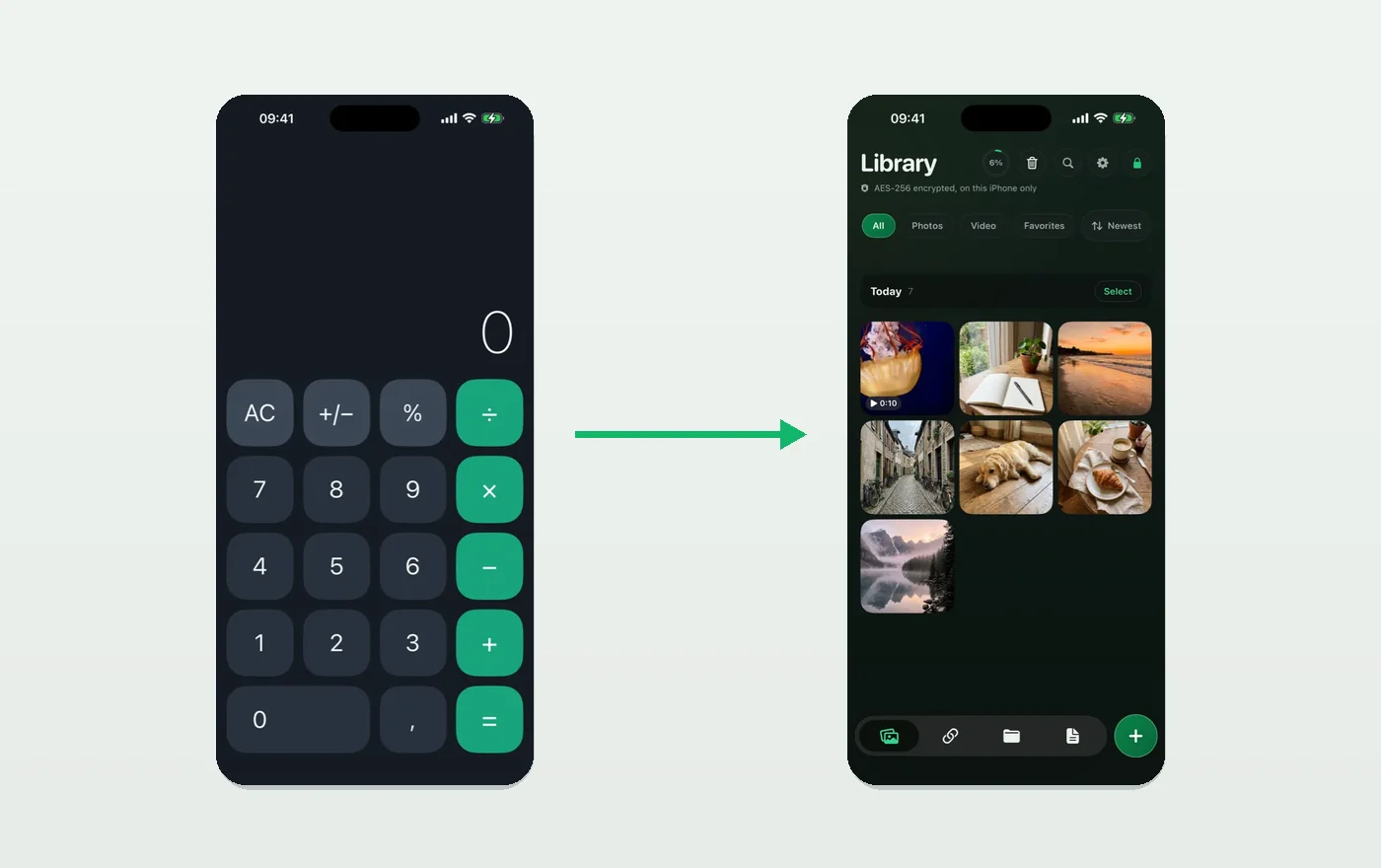
Two honest notes. The presence of a Hidden folder tells you something was hidden, not what. And an app that shows a different name and icon — a vault that looks like a calculator, for instance — will still appear in all four lists under its real App Store name, because iOS does not let an app change its own name at runtime.
Where a vault app fits, and where it does not
Hiding an app is about the icon. If what you actually want is that the contents stay unreadable, that is a different problem and hiding does not touch it: an app removed from the Home Screen opens normally the moment someone finds it in the App Library.
Hushfold takes the other half of the job. Photos and videos you add are encrypted with AES-256-GCM and stored outside your photo library, so there is no copy in Photos to find, and the app opens with its own password rather than your device passcode. It has a deliberately unremarkable name and icon, and it sends no notifications at all — not as a missing feature, but because a notification on a lock screen announces what an app is to whoever is looking at the screen.
What it does not do, and will not claim: it cannot remove itself from Settings or Screen Time, and no app can. Its alternate icons and disguise screens are listed in its own Settings and declared in its App Store description, because App Review requires features to be findable rather than secret.

Quick reference
| You want to… | Do this |
|---|---|
| Tidy your Home Screen | Remove from Home Screen |
| Stop an app appearing when someone borrows your phone | Hide and Require Face ID |
| Stop it turning up in Spotlight | Siri & Search → both toggles off |
| Keep it out of Family Sharing's list | App Store → Purchased → Hide |
| Deal with several apps at once | Hide a whole Home Screen page |
| Make the contents unreadable | An app that encrypts them — hiding does nothing here |
Next: how to lock photos on iPhone · the Hidden album, and how hidden it really is
Frequently asked questions
How do I put an app in hidden?
Touch and hold the app icon, tap Require Face ID, then Hide and Require Face ID. The app leaves your Home Screen and Search, and moves into a Hidden folder at the very bottom of the App Library that opens only with Face ID. This needs iOS 18 or later.
How to get hidden apps on iPhone?
Swipe left past your last Home Screen page to reach the App Library, then scroll to the very bottom. The Hidden folder sits below every other category and asks for Face ID. If there is no Hidden folder, nothing has been hidden that way on that phone.
How can you tell if someone has hidden apps on an iPhone?
Four places show them regardless of hiding. Settings → General → iPhone Storage lists every installed app by size. Settings → Apps lists them all alphabetically. Screen Time → See All App & Website Activity reports usage by app. And the App Store account page shows the full purchase history. Hiding an app changes where its icon appears, not whether the app exists.
What are the most common hidden apps on iPhone?
Photo vaults, second messaging apps, dating apps, and apps disguised as calculators or utilities. Apps that present a different icon and name are doing something Apple permits only when the feature is declared in the App Store listing; an app that hides itself with no way to find it in Settings would not pass review.
How do I know if my husband has hidden apps on his phone?
The same four places as above: iPhone Storage, the Settings app list, Screen Time activity, and App Store purchase history. We will give you the factual answer because it is a fair question and the information is not secret. Whether to look at someone else’s phone is not a question this page can answer for you.
How do you reveal hidden apps?
To unhide your own: App Library → scroll to the bottom → Hidden folder → Face ID → touch and hold the app → Don’t Require Face ID. To find apps that are merely off the Home Screen rather than in the Hidden folder, search the App Library or check Settings → Apps for the complete list.