The short answer. From iOS 18 you can require Face ID to open the Photos app: touch and hold the icon, tap Require Face ID. That stops someone picking up your unlocked phone and browsing. It does not stop someone who knows your passcode, and it does not remove the photos from your library, your iCloud backup, or Spotlight.
Ask this first: who are you locking it against? The answer changes which method is right. A stranger who finds your phone is stopped by your passcode. A friend borrowing it for a minute is stopped by a Face ID prompt. Someone who lives with you, knows your passcode and will look again tomorrow is stopped by none of Apple's options.
Method 1 — Require Face ID to open Photos (iOS 18+)
- Touch and hold the Photos icon on the Home Screen.
- Tap Require Face ID.
- Confirm with your face.
Photos now asks every time it is opened from cold.
Stops: casual browsing when you hand over an unlocked phone.
Does not stop: anyone who knows your passcode, because Face ID falls back to it. It also does not cover photos that appear outside the app — widgets, Spotlight, Messages attachments, the share sheet.
Lock any app the same way
The same long-press menu offers Require Face ID and Hide and Require Face ID for most apps. Hiding moves the app into a locked folder at the bottom of App Library. Worth knowing: hidden apps still appear in Settings → General → iPhone Storage and in your purchase history.
Method 2 — the Hidden album
- Select the photos you want out of the way.
- Tap Share.
- Scroll the list and tap Hide.
They leave the main grid and land in a Hidden album, at the bottom of the Utilities section in the Albums tab.
Since iOS 16 that album is locked behind Face ID by default, and since iOS 18 it is collapsed out of sight unless you scroll for it. Check the toggle at Settings → Apps → Photos → Show Hidden Album.
Stops: photos appearing while someone scrolls your camera roll.
Does not stop: anyone who knows the album exists. It is in the same place on every iPhone, and Face ID falls back to your passcode. It is a tidiness feature that gained a lock, not a security feature.
Method 3 — turn off the places photos leak out
Locking the app is undone by the five surfaces that show photos without opening it. In Settings → Apps → Photos:
- Show in Memories & Featured Content — off, or a hidden photo can surface in a slideshow on your Lock Screen.
- Shared Albums — off if you no longer want an ex or a family group seeing new additions.
- Spotlight — Settings → Apps → Photos → Siri & Search, turn off Show App in Search.
- The Photos widget — remove it from the Home and Lock Screen.
- CarPlay and Apple Watch — both mirror parts of your library.
Method 4 — move them out of Photos entirely
The three methods above all leave the photo in your library. It is in your iCloud Photos backup, it syncs to your iPad and your Mac, and it is one Face ID prompt or one known passcode away.
An encrypted vault app is a different model. The photo is imported, encrypted with a key derived from a password only you know, and written to the app's own storage. The file on disk is ciphertext. It is not in the camera roll, not in iCloud Photos, not in Spotlight, not in Memories, not on your Mac.
| Method | Stops a borrowed phone | Stops someone with your passcode | Out of iCloud Photos | Out of Spotlight |
|---|---|---|---|---|
| Face ID on Photos app | Yes | No | No | No |
| Hidden album | Partly | No | No | No |
| Locked Note | Yes | Separate password | No | Yes |
| Encrypted vault app | Yes | Yes | Yes | Yes |
The trade you are making with a vault
Moving photos out of Photos means moving them out of Apple's backup too. That is the whole point, and it is also the risk: if the app has no backup of its own and you lose the phone, the photos are gone.
So the question to ask any vault app before you trust it with anything is not “is it encrypted” — they all say yes. It is “how do I get my photos back out, and what happens when I switch phones?” If the answer is not obvious within a minute of opening the app, that is your answer.
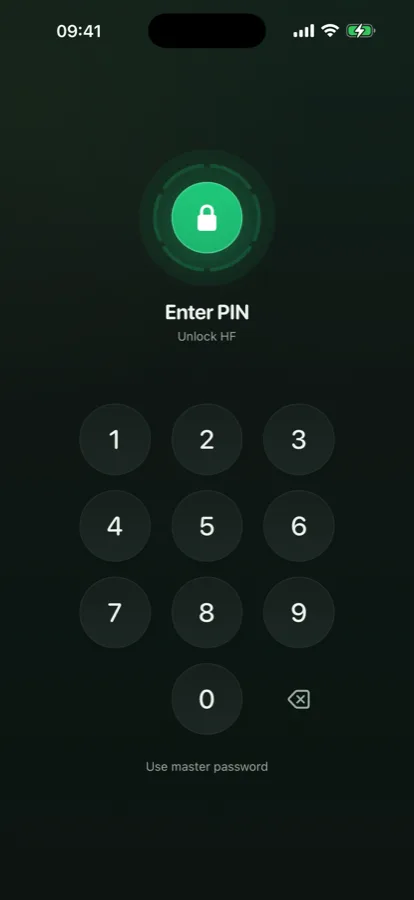
Hushfold's answers, so you have something to compare against: encrypted backup into your own iCloud, free and off by default; a 12-word recovery phrase shown once; and export of the whole vault to a single .hushfold file that opens on any iPhone with your password, whether or not you ever pay.
The trick people use instead: a Locked Note
A common workaround is to paste photos into an Apple Note and lock it. It works, it is free, and it is genuinely encrypted — Apple encrypts locked notes end to end with a password only you know.
Where it breaks down in practice:
- It does not remove the original. Pasting a photo into a note copies it. The original is still in your camera roll until you delete it yourself, and then it sits in Recently Deleted for 30 days.
- Images get downscaled. Notes is a notes app; it compresses attachments. Do not use it as the only copy of anything you care about.
- No grid, no video playback worth using. Twenty photos in one note is a scroll, not a library.
- One password for all locked notes. There is no second note with a different password, so there is no “show them this one” option.
It is a reasonable answer for three documents. It is a poor answer for three hundred photos.
Which one should you actually use
| Your situation | What to do |
|---|---|
| You hand your phone to people and they scroll | Face ID on the Photos app. Takes ten seconds, solves it. |
| A few photos you would rather not explain | Hidden album, plus turn off Memories and the widget. |
| Two or three documents, permanently | A Locked Note. |
| Someone who lives with you knows your passcode | None of Apple's options work. You need a separate app with its own password. |
| You are asked to unlock your phone and show it | A vault with a second PIN that opens a different, harmless vault. |
That last row is the one Apple has no answer for, and it is worth being precise about it. A lock protects you when you are not there. It does nothing when you are standing next to the person and they are watching you unlock the phone. The only thing that helps then is a vault that can show a second, plausible set of contents — and no amount of encryption substitutes for it.
One thing no app on iOS can do. A still screenshot cannot be blocked. Any app claiming to prevent screenshots is either blocking screen recording — which is possible — or overstating what it does. Hushfold blocks recording and mirroring, detects a screenshot and tells you, and does not claim more than that.