The short answer. Open the photo, tap the three dots, tap Hide. It moves to Albums → Utilities → Hidden, which asks for Face ID. That is the right answer if you are hiding a surprise present. It is the wrong answer if the person you are thinking of knows your passcode, and the rest of this page is about telling those two cases apart.
Start with the only question that matters: who are you hiding from? A stranger who finds your phone is stopped by your passcode and you need nothing else. Someone borrowing it for a minute is stopped by the Hidden album. Someone who lives with you, knows your passcode and has a reason to look is stopped by neither — and the second Google result on this search is a Reddit thread of people discovering exactly that.
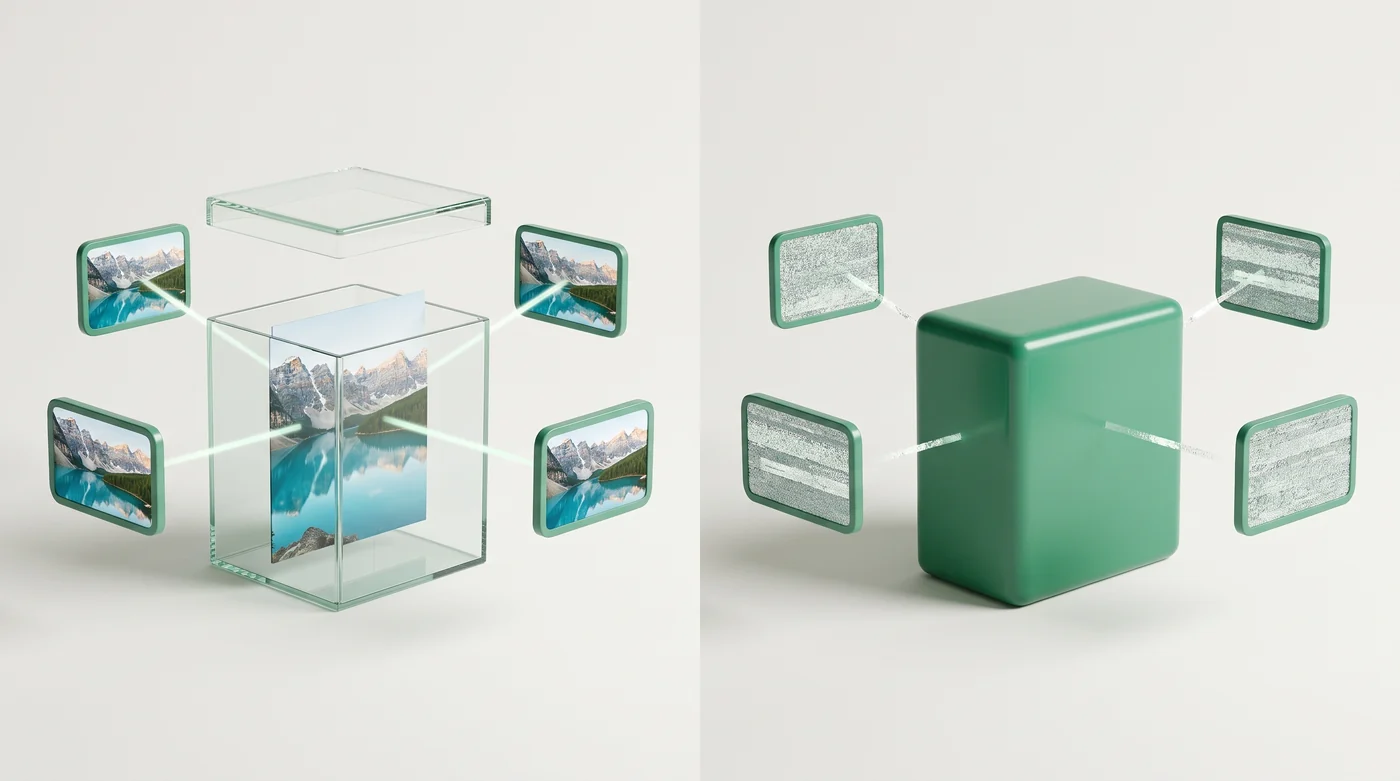
Option 1 — Apple's Hidden album
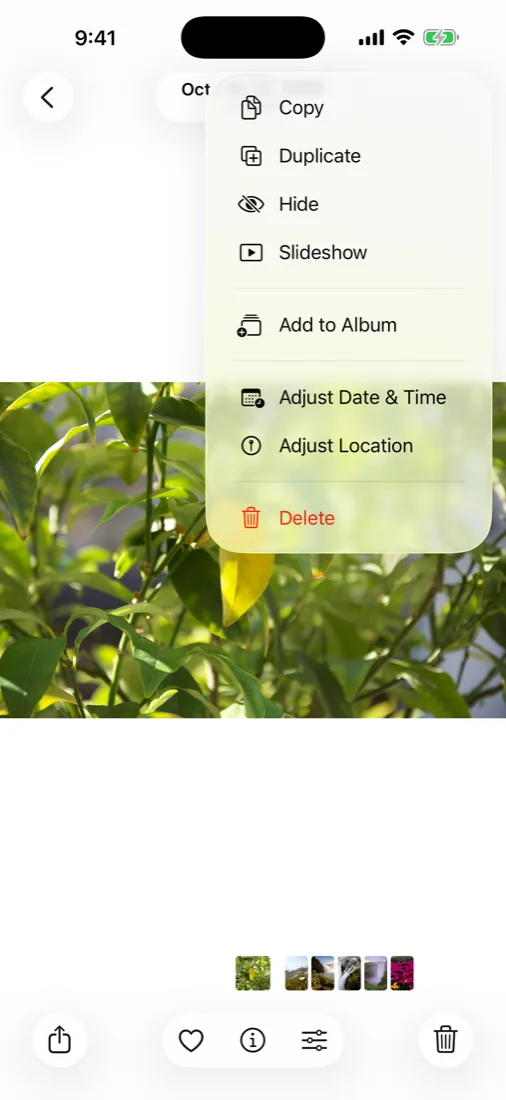
- In Photos, open a picture — or tap Select to do several.
- Tap ⋯.
- Tap Hide.
It moves to Utilities → Hidden, which has asked for Face ID since iOS 16 and does so by default since iOS 18.
Stops: someone scrolling your camera roll for ten seconds, and — more usefully than people realise — the photo resurfacing as a Memory or on the Photos widget years later while someone is looking over your shoulder.
Does not stop: anyone who knows the album exists, which is everyone; anyone with your passcode, because Face ID falls back to it; iCloud Photos showing the same album on your Mac, your iPad and at iCloud.com; and the label "Hidden" itself, which announces that there is something to find.
The files are not encrypted separately. They are ordinary photos with a flag set on them.
Full detail, including where iOS 18 moved the album and how to remove it from the list: the Hidden album on iPhone.
Option 2 — A locked Note
Paste photos into an Apple Note and lock it. Genuinely encrypted, end to end, with a password only you know — better than the Hidden album on that count.
Where it falls down: Notes compresses attachments, so never make it the only copy; there is no grid and no real video playback; the original stays in your camera roll until you delete it yourself; and there is one password for all locked notes, so there is no second note to show someone. Good for three documents, poor for three hundred photos.
Option 3 — An encrypted vault app
A vault imports the photo into its own storage, encrypts the file itself, and optionally removes the original from Photos. The distinction that matters is encrypted file versus locked door. A locked door protects the app. An encrypted file protects the data even when someone reaches it another way — a computer backup, a cable, a phone that was not locked at the time.
Five questions to ask any vault before you trust it
- Does it need an email or account? If yes, you have told a company who you are before hiding anything.
- Is the file encrypted, or just the app locked? Look for AES-256 and a key derived from your password, not one held on a server.
- What happens if you stop paying? Some vaults lock you out of photos you already put in. Viewing and exporting should never be behind a paywall.
- What does its App Store privacy label say? "Usage data" in a privacy app is a contradiction worth noticing.
- Can you get everything out in one move? A free, complete export is the difference between a vault and a hostage situation.
We wrote that list before we wrote the app, so it is only fair to answer it in public. Hold these against anyone else's answers, ours included.
| The question | Hushfold's answer |
|---|---|
| Email or account? | None. There is no sign-up screen and no server to sign up to. |
| File encrypted, or app locked? | The file. AES-256-GCM, key derived from your password with PBKDF2-SHA256 at 600,000 rounds, on the phone. |
| If you stop paying? | Viewing, exporting and deleting are never gated — including photos past the free cap. Paying lifts the cap on adding. |
| Privacy label? | Data Not Collected. No analytics SDK, no ad SDK; a build check fails the build if one is ever imported. |
| Everything out in one move? | Yes — one encrypted .hushfold file to Files or AirDrop, free, no cap. |
The honest part of that table is the third row. A cap on adding is a real limit and you will meet it at 150 photos. What we will not do is hold photos you already trusted us with.
Option 4 — Shared Albums, and why people get caught by them
Not a way to hide anything, but the most common way hidden photos stop being hidden, so it belongs on this page.
A Shared Album keeps its own copy. Hide the original in your library and the copy in the shared album stays exactly where it was, visible to everyone invited, on their devices, indefinitely. The same is true of a photo you added to someone else's shared album months ago and forgot.
Audit it once:
- Open Photos → Albums → Shared Albums.
- Tap each album, tap the people icon, and look at who is on the list.
- To stop new ones appearing: Settings → Apps → Photos → Shared Albums, off.
Turning the setting off does not remove albums you already shared. You have to delete each one, and deleting removes it for everyone.
Option 5 — iCloud Shared Photo Library, the newer trap
Different feature, same failure mode, and much easier to trigger by accident because iOS offers to move photos into it automatically.
If you set up a Shared Library with a partner or family, photos in it are theirs as much as yours — they can edit and delete them, and they see them in their own Library tab. Hiding a photo that lives in the Shared Library hides it from your view; it does not remove it from theirs.
Check:
- Open Settings → Apps → Photos → Shared Library.
- If one exists, look at Move Photos to Shared Library and the rule that sends new photos there automatically.
If one exists, look at Move Photos to Shared Library and the rule that sends new photos there automatically — a camera rule based on location or people can be routing your photos to someone else without you thinking about it each time.
To take a single photo back: open it, tap the three dots, Move to Personal Library.
Which one stops whom
| Hidden album | Locked Note | Encrypted vault | |
|---|---|---|---|
| Someone scrolling your unlocked phone | Stops them | Stops them | Stops them |
| Someone who knows your passcode | No | Stops them | Stops them |
| Photo resurfacing as a Memory | Stops it | Stops it | Stops it |
| Visible on iCloud.com / your Mac | Still visible | Locked | Not there at all |
| Readable in a computer backup | Yes, fully | No | No |
| Leaves the camera roll | No | Not unless you delete it | Yes, if you choose that |
| Something plausible to show if you are asked to open it | No | No | Yes, with a decoy vault |
| Backed up automatically with your phone | Yes | Yes | Depends on the app — check first |
"Can I delete it from my camera roll but keep it in an album?"
Google shows this as a related question on this search, and the honest answer is no, not inside Photos. An album does not hold a copy; it holds a reference to the one photo in your library. Delete the photo and it leaves every album with it.
The only way to have something out of your camera roll but still viewable is for a second copy to exist somewhere else — which is exactly what importing into a vault does. Import, confirm it opened correctly on the other side, then delete the original and empty Recently Deleted, which otherwise holds it for another 30 days.
Two things that catch people out
A screenshot of a hidden photo is a new, unhidden photo. Zoom in on something in the Hidden album, take a screenshot to crop it, and the crop lands in your camera roll like any other picture. This is the single most common way hidden photos reappear.
Sharing a photo makes a second copy that is not hidden. Send it in Messages or WhatsApp and that app keeps its own copy indefinitely, outside Photos and outside anything you do to the original. Hiding the original later changes nothing about the copy in the conversation.
Live Photos and videos behave the same as stills — hiding takes the whole thing, motion included — but a video you have already sent, or that has already been saved by the other person, is beyond any of this.
What about photos already backed up to iCloud?
The question that decides whether any of this worked, and the one most guides skip.
If iCloud Photos is on, every photo in your library is also on Apple's servers. Hiding changes nothing about that — the Hidden album syncs, so the photo is hidden on every device and present on all of them. Deleting a photo from your iPhone deletes it from iCloud and from every other device, after 30 days in Recently Deleted.
So after you move photos into a vault and delete the originals, the sequence that actually clears them is:
- Delete from Photos on the iPhone.
- Empty Recently Deleted, or wait 30 days.
- Open iCloud.com in a browser and confirm they are gone from Photos there too, including its own Recently Deleted.
- Check any Mac signed into the same Apple Account. Photos on a Mac keeps its own Recently Deleted.
And the copy nobody thinks of: an unencrypted backup of your iPhone on a computer contains every photo at full resolution, hidden or not, from whenever that backup was made. Deleting from the phone today does nothing to a backup from last year. In Finder, tick Encrypt local backup, or delete the old backups you do not need.
Does hiding photos free up storage?
No, and the confusion is worth clearing up because it sends people down the wrong path.
A hidden photo takes exactly the same space as before — hiding sets a flag, it does not compress or move the file. Moving photos into a vault does not free space either while the originals are still in Photos; for a while it uses more, because the photo exists twice.
Space comes back only when you delete the original and empty Recently Deleted. If freeing space is the actual goal rather than privacy, the thing that moves the needle is video, not photos — see why your iPhone storage is full.
Doing it properly, in order
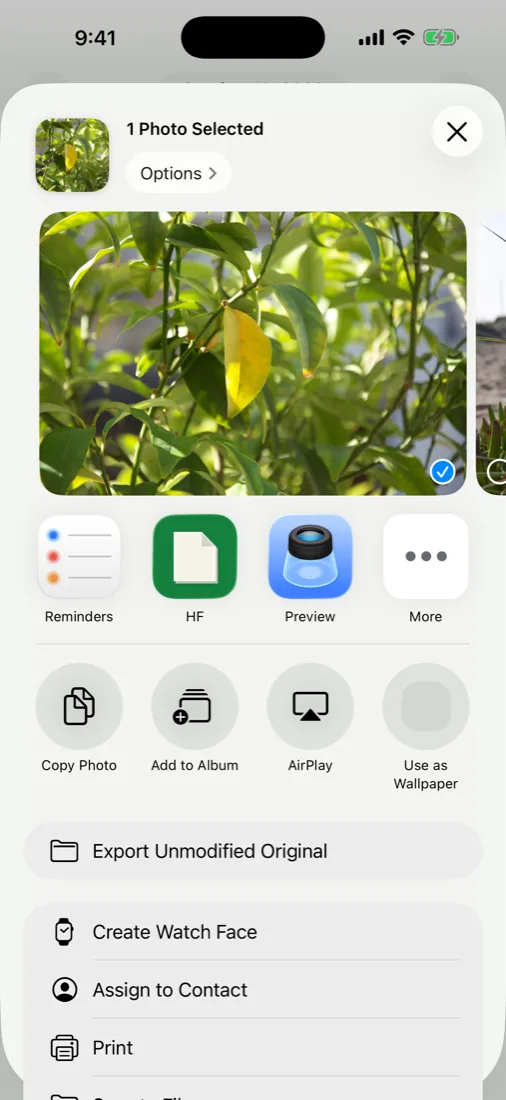
The fastest route into most vaults is not the vault's own import button — it is the Share Sheet. Select photos in the Photos app, tap Share, and pick the vault from the row of apps. It hands the files over without you leaving Photos, which matters when you are moving a few hundred.
- Import into the vault first. Never delete before you have confirmed the new copy opens.
- Check a few at full size. Some apps quietly downscale on import. Open two or three and zoom in.
- Then delete the originals from Photos.
- Empty Recently Deleted. Photos → Albums → Utilities → Recently Deleted → Delete All. Skipping this is the most common mistake; the photos are still on the phone for 30 days otherwise.
- Check iCloud.com from a browser once, to confirm they are gone from there too.
- Set up the vault's backup or export before you rely on it. Photos that exist in one place only are one dropped phone from gone.
What we built, and what we will not claim
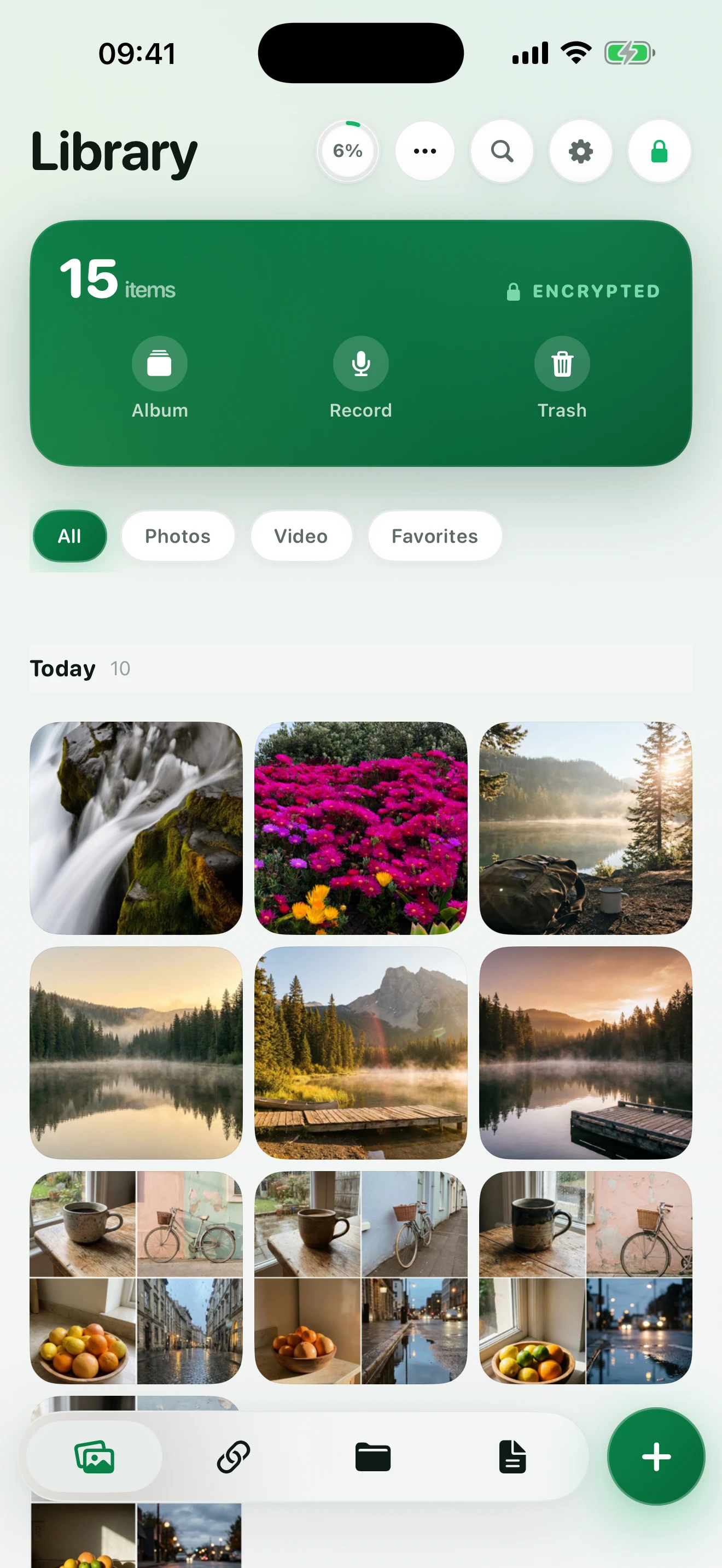
Hushfold is option three. Photos are encrypted with AES-256-GCM using a key derived from your password with 600,000 rounds of PBKDF2, stored outside the photo library. No account, no email, no server of ours — backup goes to your iCloud as ciphertext, and its App Store privacy label is Data Not Collected. A second password opens a different, harmless vault, and viewing, exporting and deleting are never behind the paywall.
Three things we will not pretend about. No app on iOS can block a still screenshot, so nothing protects you from someone holding your unlocked phone with the vault open. Moving photos into any app makes them depend on that app's backup, which is why ours exports everything to a single file for free. And if the person you are worried about can compel you to unlock the phone, encryption is not the relevant question — that is what the decoy vault is for, and it is a declared feature, not a secret one.
Next: the Hidden album in detail · how to lock photos · how the encryption works
Frequently asked questions
How do I make photos private on my iPhone?
Hiding and making private are different things. Hiding moves a photo to the Hidden album but leaves it in your library and in iCloud, readable by anyone who can unlock the phone. Private means the file itself is encrypted with a key derived from a password only you know, and stored outside the photo library. Apple offers the first; you need a vault app for the second.
How do I put photos in a hidden folder?
Open the photo, tap the three dots, tap Hide, confirm. There is only one Hidden album on iPhone and you cannot create more or organise inside it. Everything you hide lands in the same list in date order.
Where are hidden photos in iPhone?
Photos → Albums tab → scroll to the bottom → Utilities → Hidden. Since iOS 18 it asks for Face ID. If the row is missing, turn on Settings → Apps → Photos → Show Hidden Album.
Can you hide photos from your camera roll on iPhone?
Yes. Hiding removes a photo from the Library, Memories, Featured Photos and the Photos widget. It does not remove it from the Hidden album, from iCloud, or from a computer backup of the phone. The file itself never moves.
How do I hide pictures on my camera roll?
Tap Select in any grid, choose the photos, tap the three dots at the bottom right, tap Hide. You can do hundreds at once and nothing is re-compressed; hiding sets a flag rather than moving files.
Can I delete photos from my camera roll but keep them in an album?
No, not within Photos. Albums hold references, not copies, so deleting from the camera roll deletes from every album too. The only way to have a photo out of the camera roll but still viewable is to move it into an app that stores its own copy, then delete the original.