The short answer. Open Settings → General → iPhone Storage and read the top of the list. On most phones it is video, by a wide margin. Empty Recently Deleted first because it is silently holding 30 days of everything you already deleted, then re-encode your biggest videos to HEVC rather than deleting them. Those two steps typically return more than an hour of deleting apps ever will.
Storage on your iPhone and storage in iCloud are two different things. An iCloud notice means Apple's servers are full and your backup has stopped. A device notice means the phone itself is full. Buying more iCloud does nothing for a full phone, and clearing the phone does nothing for a full iCloud. Check which message you actually got before you pay for anything.
Step 1 — find out what is actually taking the space
- Open Settings → General → iPhone Storage.
- Give the bar ten or fifteen seconds to finish calculating.
- Read the app list — it is already sorted largest first.
Nearly every full iPhone is full for the same reason, and it is not apps. A typical 128 GB phone with a storage warning is 60–80% photos and video. Deleting apps you never open feels productive and returns a few hundred megabytes; the 4K clips of last summer are tens of gigabytes.
Step 2 — empty the bin you forgot exists
- Open Photos → Albums.
- Scroll to Utilities and tap Recently Deleted.
- Tap Select, then Delete All.
This is the answer to "why is my storage still full after deleting everything", which Google shows as a question on this search for a reason. Deleted photos and videos are kept for 30 days so you can change your mind, and for those 30 days they occupy every byte they did before. If you have just spent an evening clearing your camera roll, all of it is still on the phone.
Check the same two places while you are there:
- Files → Browse → Recently Deleted. A separate bin with the same 30-day rule.
- Mail. Trash and Junk are downloaded locally on most accounts and are rarely emptied.
Step 3 — shrink the videos instead of deleting them
This is the step the other seventeen results on this page of Google skip, and it is the one that returns the most.
Apple publishes what a minute of video costs you, in Settings → Camera → Record Video:
| Recording setting | Per minute | Ten minutes |
|---|---|---|
| 720p HD, 30 fps | 30 MB | 0.3 GB |
| 1080p HD, 30 fps | 65 MB | 0.65 GB |
| 1080p HD, 60 fps | 100 MB | 1 GB |
| 4K, 30 fps | 170 MB | 1.7 GB |
| 4K, 60 fps | 400 MB | 4 GB |
If your camera has been on 4K/60 — which several iPhone models ship with — then twenty minutes of footage across a weekend is 8 GB. Re-encoding that footage to HEVC at a sensible bitrate typically lands it near a quarter of the size, and at normal viewing distance on a phone you cannot tell which is which. The full method, including how to check you have not wrecked the quality, is in the video compression guide.
Two rules worth holding to whatever tool you use: keep the original until you have watched the new one, and be suspicious of anything that shrinks a file without showing you the result. The most common one-star complaint about storage-saver features in photo apps is exactly this — quality quietly dropped, originals quietly gone.
We built to those two rules, so it is fair to say which app we mean.Hushfoldkeeps the original in Trash for 30 days and will not keep a shrunk file at all unless it is at least 15% smaller and scores PSNR ≥ 34 dB against the original — and it shows you both, same frame, before you decide. Everything on this page works without it; this step is the one where a tool earns its place, and the rules above are how to judge any of them.
Step 4 — Messages, the category nobody checks
- Open Settings → Apps → Messages.
- Tap Keep Messages and choose 1 Year.
The default is Forever, which means every photo, video, voice note and meme anyone has ever sent you is still on the phone.
To see the damage before you commit: Settings → General → iPhone Storage → Messages lists Photos, Videos and Attachments with sizes, and lets you review the largest before deleting. On a phone that has been in use for five years this is routinely 10–20 GB.
Step 4b — the three caches nobody mentions
Between Messages and System Data sit three stores that grow quietly and are safe to clear.
- Podcasts and music downloads. Settings → General → iPhone Storage → Podcasts. Episodes you played once stay downloaded unless you told them not to. Podcasts → Settings → Remove Played Episodes fixes it going forward.
- Streaming apps. Netflix, YouTube and Spotify each keep offline content and a cache that does not show up as "Documents & Data" until you look. Each has its own downloads list; iOS cannot clear them for you.
- Safari. Settings → Apps → Safari → Clear History and Website Data. Usually a few hundred megabytes, occasionally several gigabytes if you have never done it.
None of these is dramatic on its own. Together they are routinely 5–15 GB on a phone two years old.
Step 5 — what System Data actually is
System Data is the grey bar at the end that can be anything from 5 GB to 40 GB and has no delete button. It holds caches, logs, Siri voices, fonts, keyboard dictionaries and staged update files.
Three honest things about it:
- You cannot delete it directly, and no app can either. Anything in the App Store claiming to clean it is claiming something iOS does not permit.
- iOS clears it itself when the device genuinely needs room. It is designed to expand into free space and shrink under pressure, which is why it looks alarming on a full phone and normal on an empty one.
- A restart often drops it by a gigabyte or two, and clearing Safari history (Settings → Apps → Safari → Clear History and Website Data) usually takes a chunk more.
If System Data is genuinely enormous — more than about 20 GB — the reliable fix is a backup, erase and restore. That is a two-hour job, so leave it until the other steps are done.
Why the number in Settings never matches
Add up the categories in iPhone Storage and the total will not equal what the bar says, and neither will match what iTunes or Finder reports. Three reasons, all normal:
- Storage manufacturers count in decimal, iOS counts in binary. A "128 GB" phone is 128,000,000,000 bytes, which iOS reports as about 119 GB. You lost 9 GB to arithmetic before you installed anything.
- iOS itself takes 8–12 GB and that is not in the app list.
- The bar is calculated lazily. Right after deleting a lot, the figure lags by minutes. Leave the screen, come back, and give it time before concluding nothing happened.
The practical consequence: a 128 GB iPhone has roughly 105 GB usable. If you are at "112 GB of 128 GB used" you are much closer to full than the numbers suggest.
"Storage almost full" while iCloud says you have space
These are two separate quotas and the notifications look alike, which is why people buy the wrong thing.
| iPhone storage | iCloud storage | |
|---|---|---|
| What it is | The chip inside the phone | Space on Apple's servers |
| Where to look | Settings → General → iPhone Storage | Settings → your name → iCloud |
| Can you buy more? | No | Yes, iCloud+ |
| What fills it | Apps, photos, video, System Data | Backups, iCloud Photos, iCloud Drive |
| What happens when full | Cannot take photos, install apps or update iOS | Backups stop silently |
Buying iCloud+ does not free a single byte on the phone. It can help indirectly, because Optimize iPhone Storage needs somewhere to keep the originals — but only if you turn that on afterwards. If your notice said "iPhone Storage", storage you buy is money spent on the wrong problem.
What each step actually returns
| Action | Typical return | Do you lose anything? |
|---|---|---|
| Empty Recently Deleted | 1–15 GB | Yes — permanently, so look first |
| Shrink your largest videos | 5–40 GB | No, if you check before discarding the original |
| Messages → Keep 1 Year | 2–20 GB | Old conversations and their attachments |
| Optimize iPhone Storage (iCloud Photos) | Varies widely | No, but originals need a connection to view |
| Offload unused apps | 0.5–3 GB | No, documents and data are kept |
| Clear Safari cache | 0.3–2 GB | History and site logins |
| Delete apps you never open | 0.2–2 GB | Everything in them |
| Backup, erase, restore | Whatever System Data was hoarding | Two hours of your day |
Stop it filling up again
- Settings → Camera → Formats → High Efficiency. HEVC instead of the older format, roughly half the size for the same footage. The only reason to choose Most Compatible is if you send raw files to an old Windows PC.
- Settings → Camera → Record Video → 1080p at 30 fps unless you have a specific reason for 4K. 1080p on a phone screen is indistinguishable, at a sixth of the size.
- Turn off Save to Photos in WhatsApp, Telegram and similar. Group chats fill camera rolls faster than cameras do.
- Settings → Photos → turn off Keep Normal Photo for HDR and Live Photos if you never use the second frame.
Where we come in
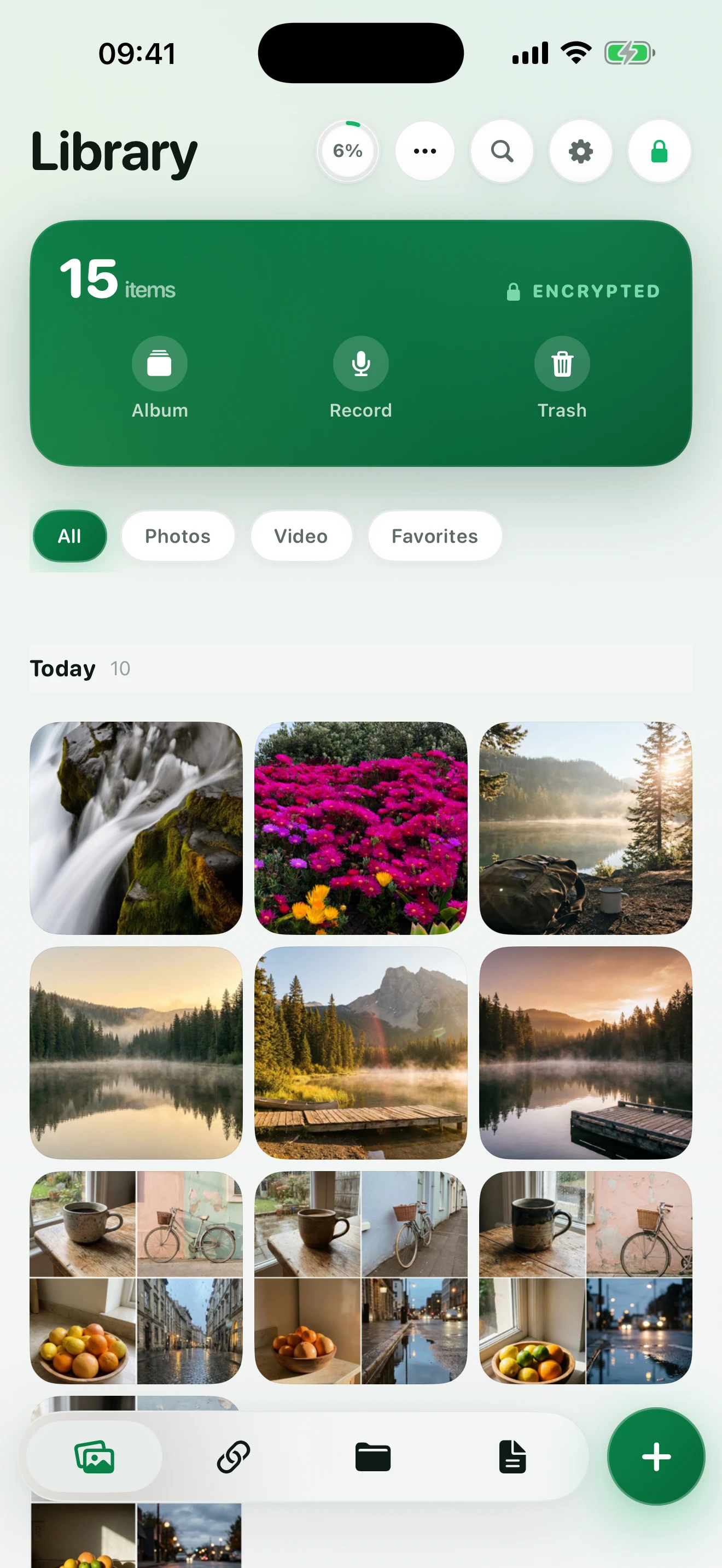
Hushfold was built around this exact problem and the one next to it. It shrinks videos on the device with a quality check that refuses the result unless the new file is at least 15% smaller and still measures above our quality bar, and it shows you both versions side by side before you keep either. The original waits in the bin for 30 days in case you change your mind.
It also encrypts everything it holds, which matters to a different set of people — but the storage half works the same whether or not you care about that.
You do not need us for any of this. Every step above works with what is already on your phone, and steps one, two and four take about five minutes together.
Next: how to compress a video on iPhone without visible quality loss · the Hidden album and how hidden it really is
Frequently asked questions
How can I free up space on my iPhone without deleting anything?
Three ways, in order of how much they return. Re-encode your largest videos to HEVC, which typically halves them with no visible difference. Empty Recently Deleted, which is holding everything you removed in the last 30 days. And turn on Optimize iPhone Storage if you use iCloud Photos, which keeps smaller copies on the device and the originals in iCloud.
Why is my iPhone storage still full after deleting everything?
Almost always Recently Deleted. Photos and videos you delete sit there for 30 days and keep occupying every byte. Open Photos → Albums → Utilities → Recently Deleted → Select → Delete All. The second cause is that iOS reports space lazily; give it a few minutes and a restart before you conclude nothing happened.
Why does my iPhone storage suddenly full?
Something started writing a lot at once. The usual suspects are a long 4K video, a photo-heavy app syncing its cache, a podcast or music app downloading offline copies, or iOS staging a system update, which can reserve several gigabytes. Settings → General → iPhone Storage lists categories largest first and settles the question in ten seconds.
Why is my storage always full even after deleting?
Because deleting the visible copy usually leaves an invisible one. Recently Deleted holds photos 30 days, Mail keeps a local cache, Messages keeps every attachment forever by default, and Safari and streaming apps rebuild their caches within days. Deleting fights a system that refills itself; shrinking the files that are actually large does not.
Why is my iPhone storage full but I can’t delete anything?
You are probably looking at System Data, the category iOS does not let you touch. It holds caches, logs and update files. You cannot delete it directly and no app can do it for you safely. iOS clears it on its own when the device genuinely runs out of room, and a restart often drops it by a gigabyte or two.
Does deleting texts free up storage?
Deleting the text barely matters; deleting the attachments does. Photos, videos and voice notes inside Messages are the weight. Settings → Apps → Messages → Keep Messages → 1 Year is the single change that does the most, and Settings → General → iPhone Storage → Messages shows the large attachments sorted by size.